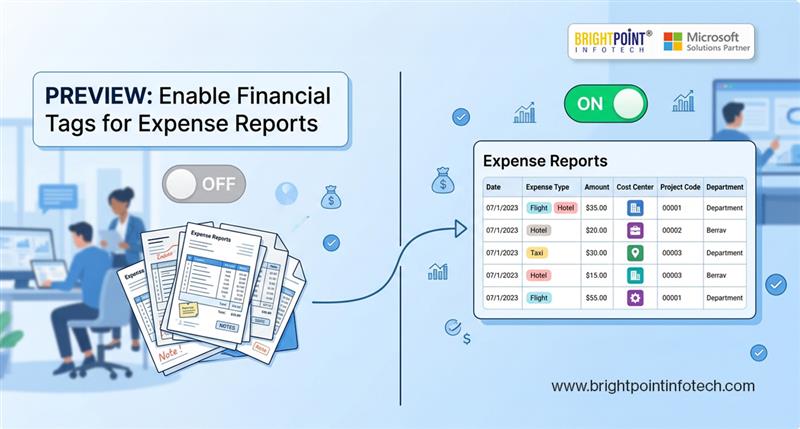
(Preview) Enable financial tags for expense reports
Introduction
This (Preview) Enable financial tags for expense reports feature is available in 10.0.47 version.
This (Preview) Enable financial tags for expense reports feature extends the existing Financial Tags functionality by enabling the use of financial tags in expense reports throughout the entire posting process. It ensures consistent tagging from the point of entry to final accounting.
Purpose
To improve tracking and reporting of expense transactions
To maintain consistency of financial tags across all posting stages
To enhance financial analysis and reporting capabilities
First, User need to enable (Preview) Enable financial tags for expense reports feature in feature management.
Pre-requisites
Go to General ledger > Chart of accounts > Financial tags > Financial tags.
Here, Users must create and activate the required financial tags before they can be used in expense reports.
Setups
Go to Expense management > Setup > General > Expense report field.
In the Report heading fields tab, users can find the (Preview) Financial tags option. To display financial tags in the report header, users must set the Visibility field to Display.
In the Expense line fields tab, users can find the (Preview) Financial tags option. To display financial tags at the expense line level in the report, users must set the Visibility field to Display.
If users want to use financial tags in the workspace, they need to follow the steps outlined below.
Go to Expense management > setup > General > Expense fields visibility (Expense reports re-imagined).
In the Expense report and Expense tabs, users can find the (Preview) Financial tags option. To make financial tags available in the workspace, users must set the Visibility field to Recommended.
DEMO
Go to Expense management > My expenses > Expense reports.
Click on +New expense report to create new expense report.
Within this form, the (Preview) Financial tags option is available, allowing users to configure the visibility and usage of financial tags.
In the Expense report form, users can find the financial tags option available at both the header level and the line level.
Go to Expense management > Workspaces > Expense management.
Click on +New expense report to create new expense report.
In this form, users can find the (Preview) Financial tags option.
In the Expense report form, users can apply financial tags at the line level using the financial tags section available on the right-hand side.
Conclusion
Keeping track of expenses doesn’t have to be complicated or overwhelming. By adding financial tags to your expense reports, you create a simple system that brings structure, clarity, and control to your finances. Instead of digging through scattered data, you can quickly understand where your money is going and make more informed decisions.
Over time, this small habit can lead to better budgeting, smarter planning, and stronger financial discipline. Whether you’re managing personal finances or handling business expenses, financial tagging helps turn raw data into meaningful insights. Start with a few key categories, stay consistent, and you’ll soon see how much easier it becomes to manage your finances with confidence.