D365 F&O: Approve Workflows Directly from Email Using Custom Buttons
In Microsoft Dynamics 365 Finance and Operations, workflows are essential for approvals across finance and operations. However, one major limitation remains users must log into the system to take action.
In today’s fast-paced environment, this creates delays.
What if users could approve, reject, or even request more information directly from their email?
Using Microsoft Power Automate, this is not only possible—but highly effective.
Step-by-Step Implementation
Step 1: Capture Workflow Event from D365 F&O
When a workflow is triggered in Microsoft Dynamics 365 Finance and Operations, it generates a business event.
This event contains the response structure required for approvals.
You need to capture this event in your flow.
Business Event configuration / workflow trigger screen
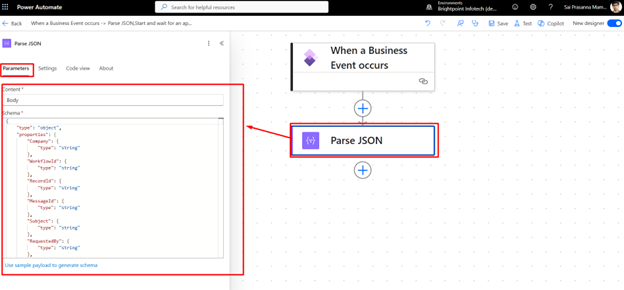
Step 2: Parse the Incoming JSON
Before using the response data, you must parse the JSON coming from the business event.
This ensures that the response options can be dynamically used later in the flow.
Power Automate “Parse JSON” step
JSON schema configuration
Step 3: Configure “Start and Wait for Approval”
In Microsoft Power Automate, add the Start and Wait for Approval action.
Choose:
Custom Responses – Wait for one response OR
Custom Responses – Wait for all responses
Then convert the input into a dynamic array instead of hardcoding values.
This allows flexibility in approval options.
Approval action configuration
“T” (expression) conversion to array
Step 4: Add Custom Response Buttons
Now comes the most important part.
Instead of just:
Approve
Reject
You can add custom responses like:
Need more info
Delegate
Request change
These must align with your workflow setup in D365 F&O.
Custom response options in Power Automate
Step 5: Save and Publish the Flow
Once configured:
Save the flow
Validate all steps
Publish it
Flow save/publish screen
Step 6: Test the Workflow Email
When the workflow is triggered:
Power Automate sends an email
Email contains action buttons
User clicks directly from inbox
Final email with approval buttons
Important Configuration Tip
To avoid permission issues:
Set Target User = Workflow Originator
Set RunAsUser = Workflow Originator
This ensures the workflow runs without failures.
User/permission configuration
Business Impact
This small enhancement delivers big results:
Faster approvals
Reduced dependency on ERP login
Better user adoption
Improved process efficiency
User/permission configuration
Business Impact
This small enhancement delivers big results:
Faster approvals
Reduced dependency on ERP login
Better user adoption
Improved process efficiency
How Brightpoint Infotech Can Help
At Brightpoint Infotech, we help organizations extend Microsoft Dynamics 365 Finance and Operations with advanced workflow capabilities using Microsoft Power Automate.
From designing custom approval flows to enabling actionable email experiences, we ensure your workflows are efficient, secure, and user-friendly.
Final Thoughts
In modern business environments, speed matters.
Enabling workflow approvals directly from email is a simple yet powerful way to remove friction and improve decision-making.
If your organization relies heavily on workflows, this is a high-impact improvement worth implementing.
Ready to Modernize Your Workflows?
Connect with Brightpoint Infotech to explore how we can help you implement smarter, faster workflow approvals in your organization.
Explore Brightpoint Infotech Solutions
Explore Our Recent Blogs & Resources Whether you are a start-up, an SMB, or an enterprise, the Brightpoint Infotech blog is the best place to get inspired and learn more about Microsoft Business Applications.